Navigating the App
Main navigation
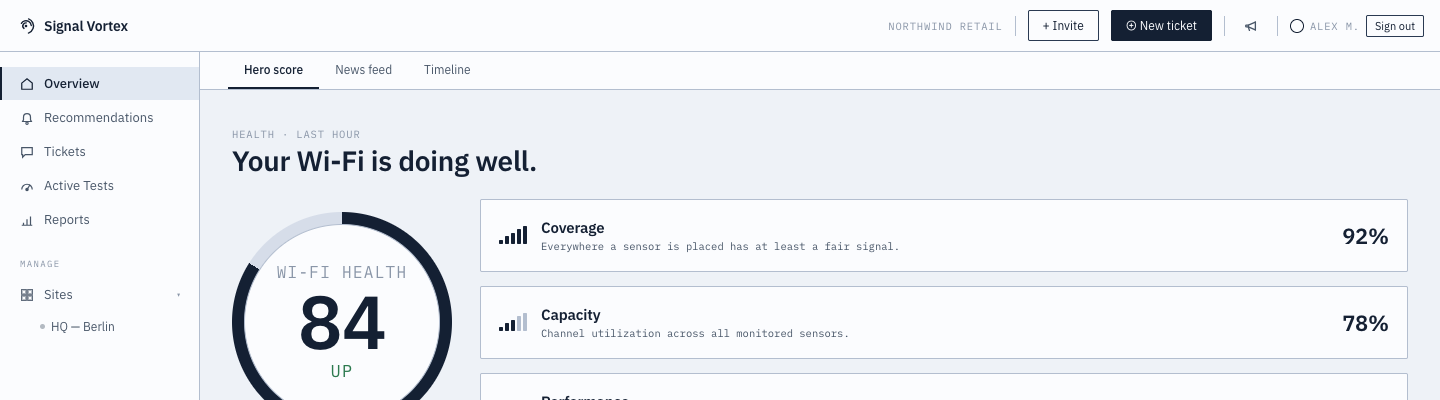
Once signed in, the left-hand navigation gives you access to:
- Overview — your Wi-Fi health, see Wi-Fi Health.
- Recommendations — the alerts inbox, see Recommendations Inbox.
- Tickets — support conversations, see Support.
- Active Test — speed test and device profiling, see Active Tests.
- Reports — see Reports.
- Sites / Access Points — see Access Points.
- Clients — see Clients.
- Environment — see Environment. Appears alongside Access Points/Clients once you've selected a site, not as its own top-level item.
- Settings — see Settings.
There's no standalone Floor Plan item in the nav — the floor plan itself (viewing and, for Admins, editing) is embedded directly in Site Overview; see Floor Plans for what that editor can do.
Badge counters on Recommendations and Tickets show how many open items need your attention.
Moving between sites
If your organization has more than one site, the nav shows a Sites list under the main items. Clicking a site name opens its Site Overview — a per-site landing page — and expands two sub-items right there in the nav: Access Points and Clients, scoped to that site.
If you manage several sites, the All Sites directory is the entry point for choosing which one to drill into, with an at-a-glance health ring for each.
Top bar
- Search — a search box next to the logo, always available regardless of which screen you're on. Searches site names instantly, and access points/clients across every site you have (fetched the first time you open it, then cached). Matches are grouped into Sites / Access Points / Clients; picking a site opens its Site Overview, and picking an AP or client jumps straight to it, expanded, on the Access Points or Clients screen — the same deep link a Recommendation's "See details →" uses. A friendly name you've set via aliases matches too, not just the raw MAC/BSSID.
- Site/org breadcrumb — shows your current context; click the logo to jump to Overview.
- Invite button (Admins only) — jumps straight into Settings with the invite-a-teammate form open.
- New ticket button — opens the ticket creation wizard from anywhere.
- What's New (megaphone icon) — a changelog of recent product updates. A red dot means there's something you haven't seen yet; opening it clears the dot.
- Your name / avatar — sign out from here.
Support access approvals
If a Signal Vortex engineer requests temporary access to help with an issue, a prompt can appear here letting you (as an Admin) approve or deny it on the spot, with the specific scope, site, and duration they're requesting. See Support Access Requests for the full picture.