Sensors
What you can do
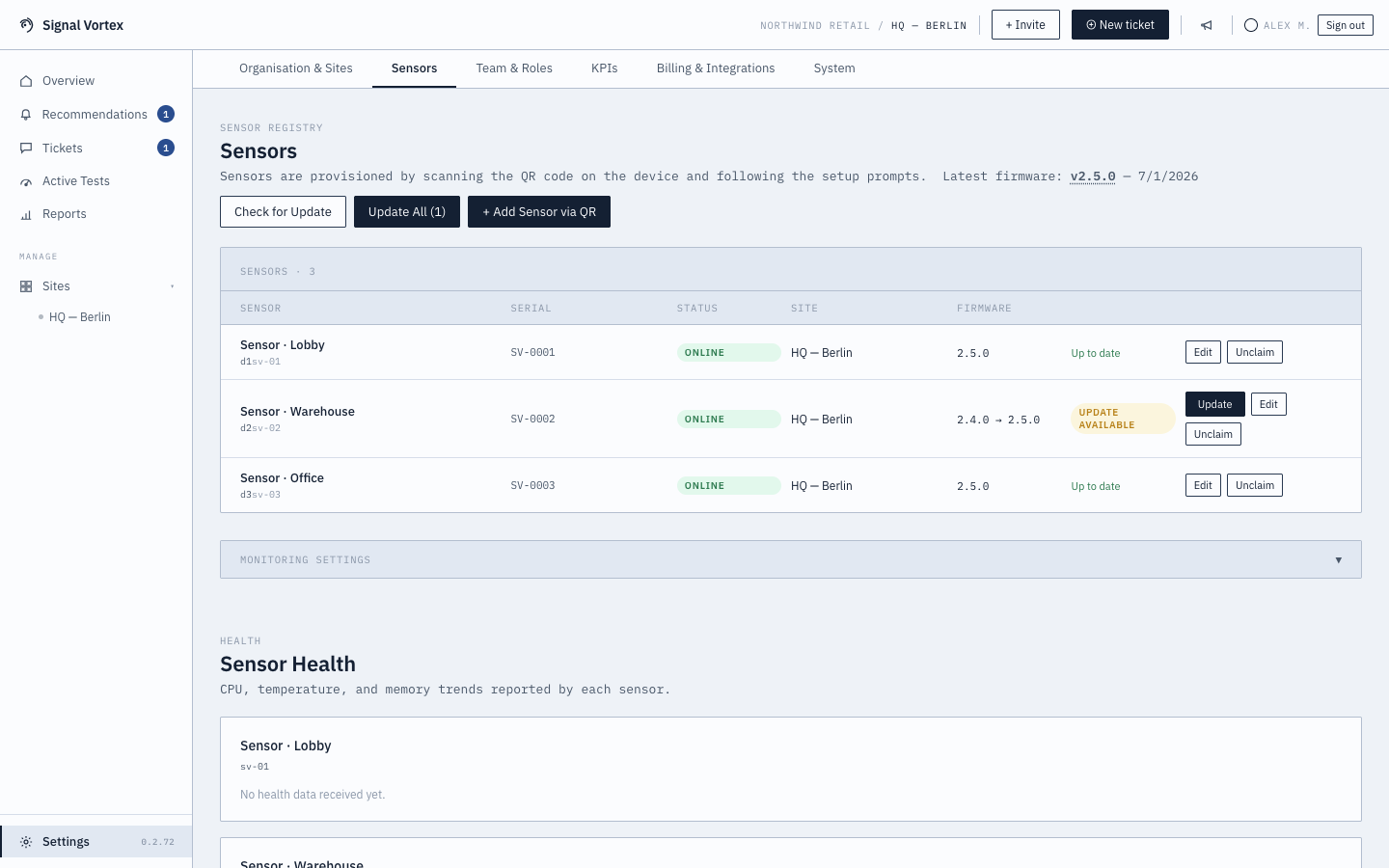
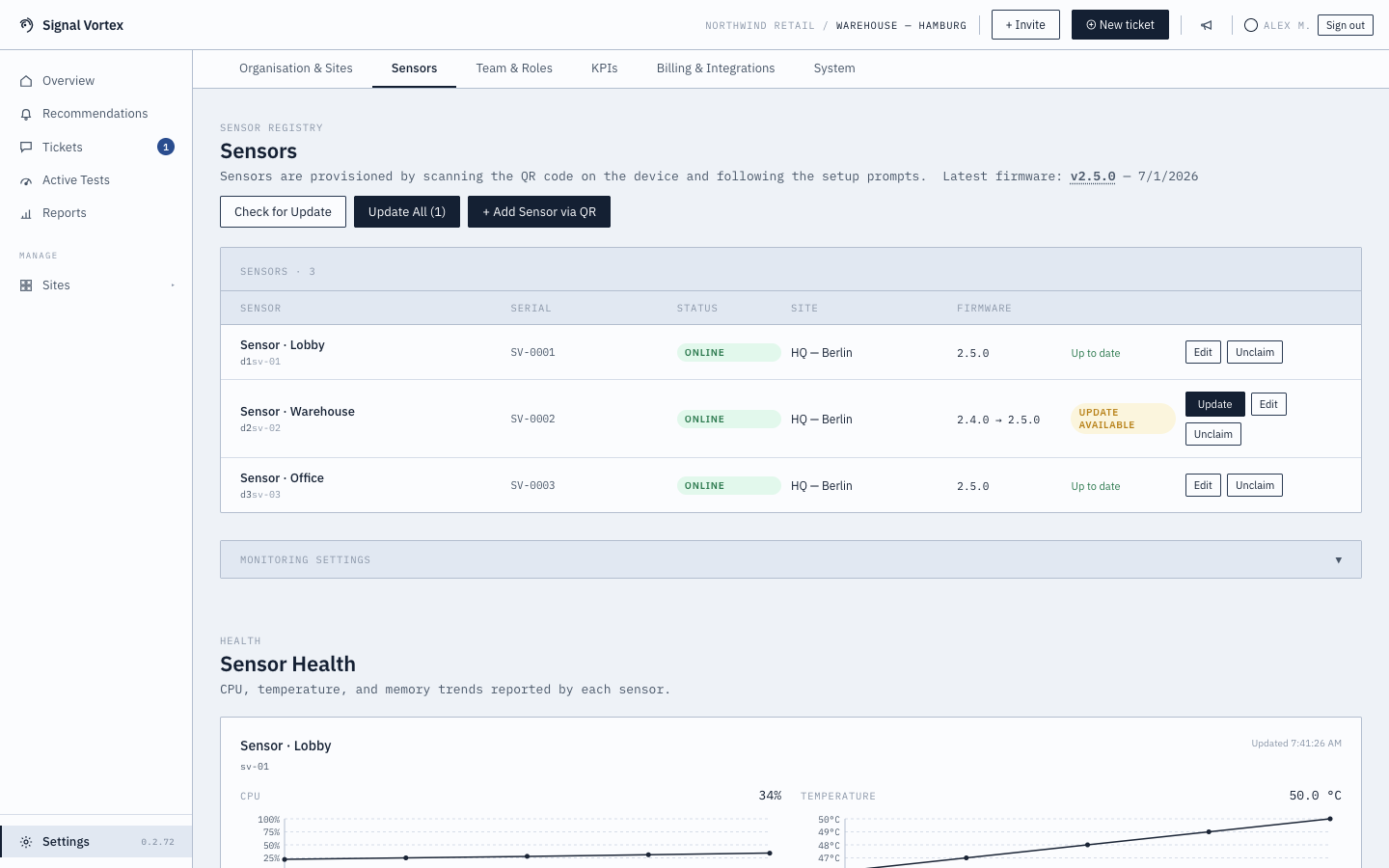
- See your full sensor inventory: serial number, current status, which site it's assigned to, and firmware version.
- Launch the sensor claiming wizard to add a new sensor.
- Unclaim a sensor yourself, right from this list — this releases it back to a reprovisionable state (it can be claimed again, by you or another workspace) and asks for confirmation first. This is different from permanently decommissioning a sensor, which is staff-assisted through Signal Vortex support.
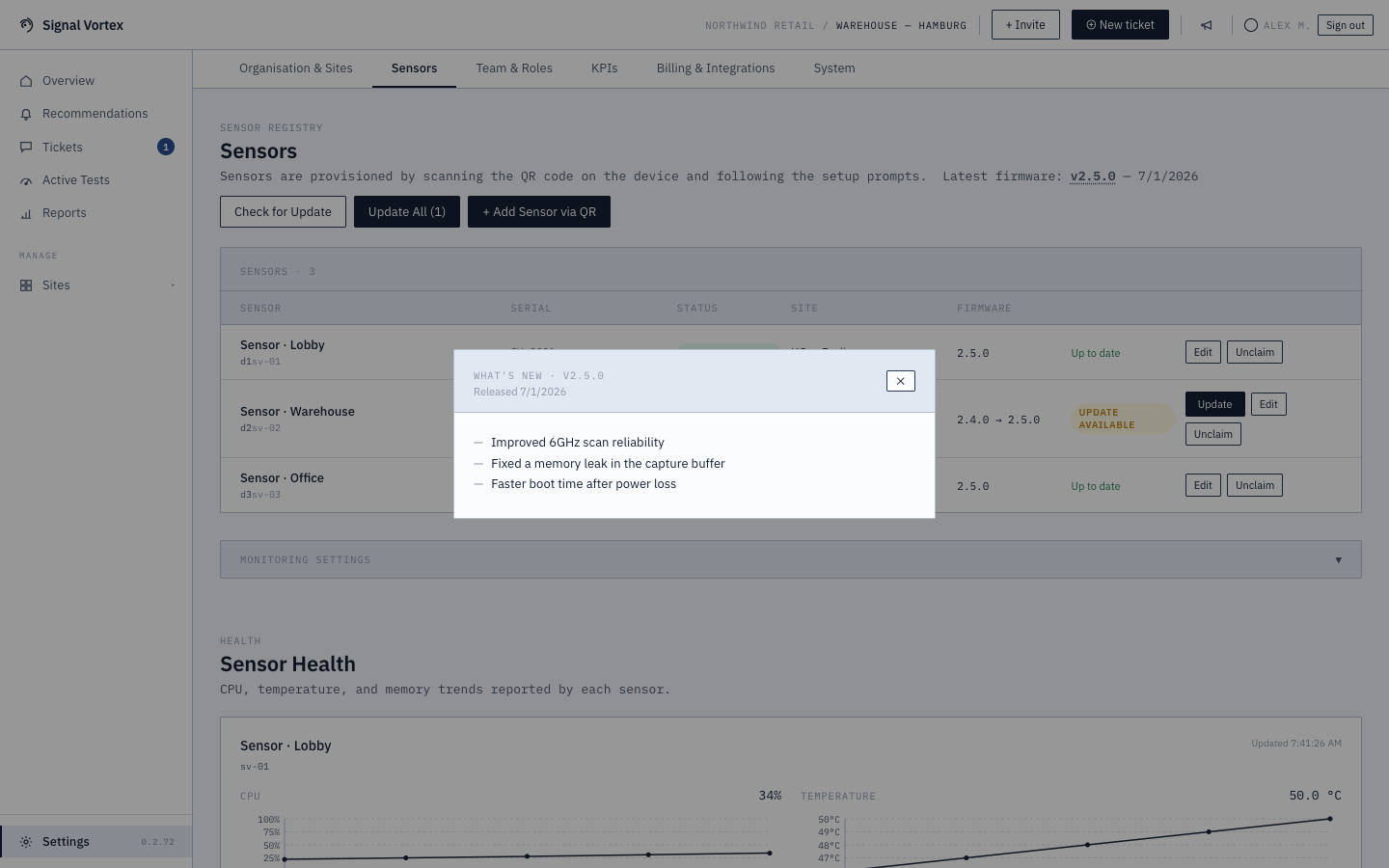
- Check for firmware updates — see the latest available version and its release notes, and trigger an update either for a single sensor or for your whole fleet at once, with a confirmation step either way.
- See when a firmware update didn't take — if a sensor restarts after an update but comes back on its old version, the list shows the update as failed along with the version it's actually running, instead of staying on "rebooting…".
- Monitor sensor health: CPU, RAM, temperature, and storage over time for each sensor, plus a configurable offline threshold (how long a sensor can go quiet before it's flagged as offline).
Low-power mode
A Low-power mode section lets an Admin let your sensors slow down when nothing is happening, to save power. It applies to every sensor in your workspace.
- Tick Let sensors slow down when nothing is happening to turn it on. It's off by default, and the change is saved and sent to your sensors straight away.
- Choose Slow down by (2× to 12×, default 4×) and click Save to set how much they slow their scanning and reporting.
- A sensor only slows down after 2 hours with no client activity, and only during an hour of the week that was also quiet in each of the last 4 weeks. A normally busy hour that is just quiet this week is never slowed, and the first sign of activity returns the sensor to its normal rate immediately.
Other roles can see the setting but not change it. While a sensor is slowed down, its readings arrive less often.
Why it matters
Every piece of data in the app ultimately comes from a sensor — this is where you confirm your fleet is online, healthy, up to date, and assigned where you expect, and where you can self-service a sensor you no longer need without waiting on support.