Ticket Conversations
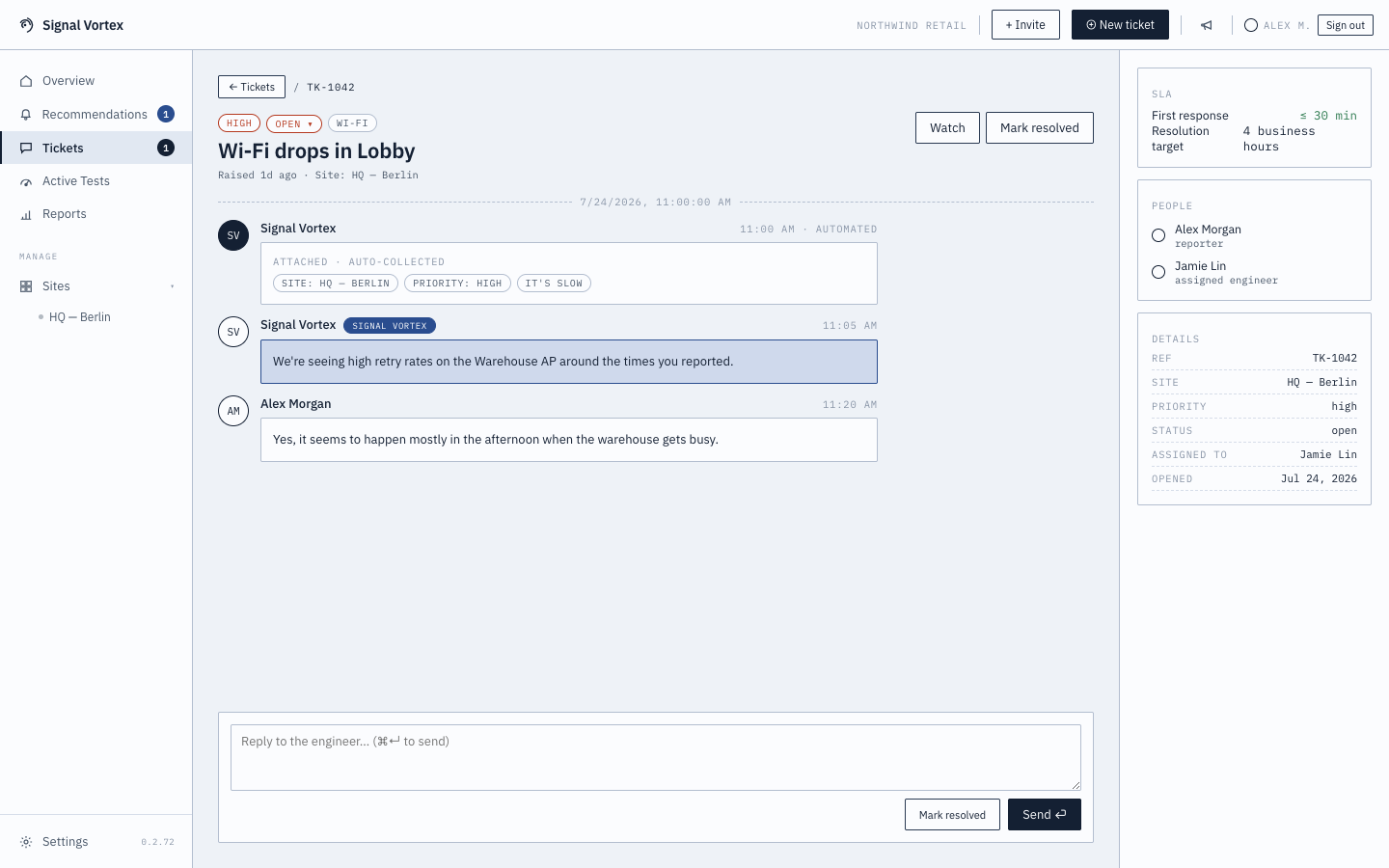
Once a ticket exists, its detail view is where the conversation with Signal Vortex support happens.
What you'll see
- A list view — search, filter by status (all/open/resolved/mine), stat tiles (open count, SLA response/resolution targets, tickets raised this month), and a sortable table.
- A message thread — an automatic system message with a snapshot of relevant data when the ticket was opened, followed by replies from you and the assigned engineer. New messages appear automatically (the thread refreshes every 10 seconds).
- Messages can carry attached evidence: a live-metrics snapshot (a moment-in-time view of AP/client data) and a packet capture link — both render as inline widgets in the thread rather than raw data dumps.
What you can do
- Reply to the thread (⌘/Ctrl+Enter to send).
- Watch/unwatch a ticket to control whether you get notified of updates.
- Change status or use the mark-resolved shortcut.
- See a right-hand rail with SLA targets, who's involved (you and the assigned engineer), and ticket details.
Why it matters
This keeps the entire troubleshooting history — messages, snapshots, captures — in one place tied to the original issue, so nothing gets lost across emails or calls.